Calendar
Keep deadlines under control
Select limits for student workload and then set coursework, internal assessments and other deadlines into one calendar.
Available on the All Features plan.
Calendar at a glance
English narration · Subtitles always on
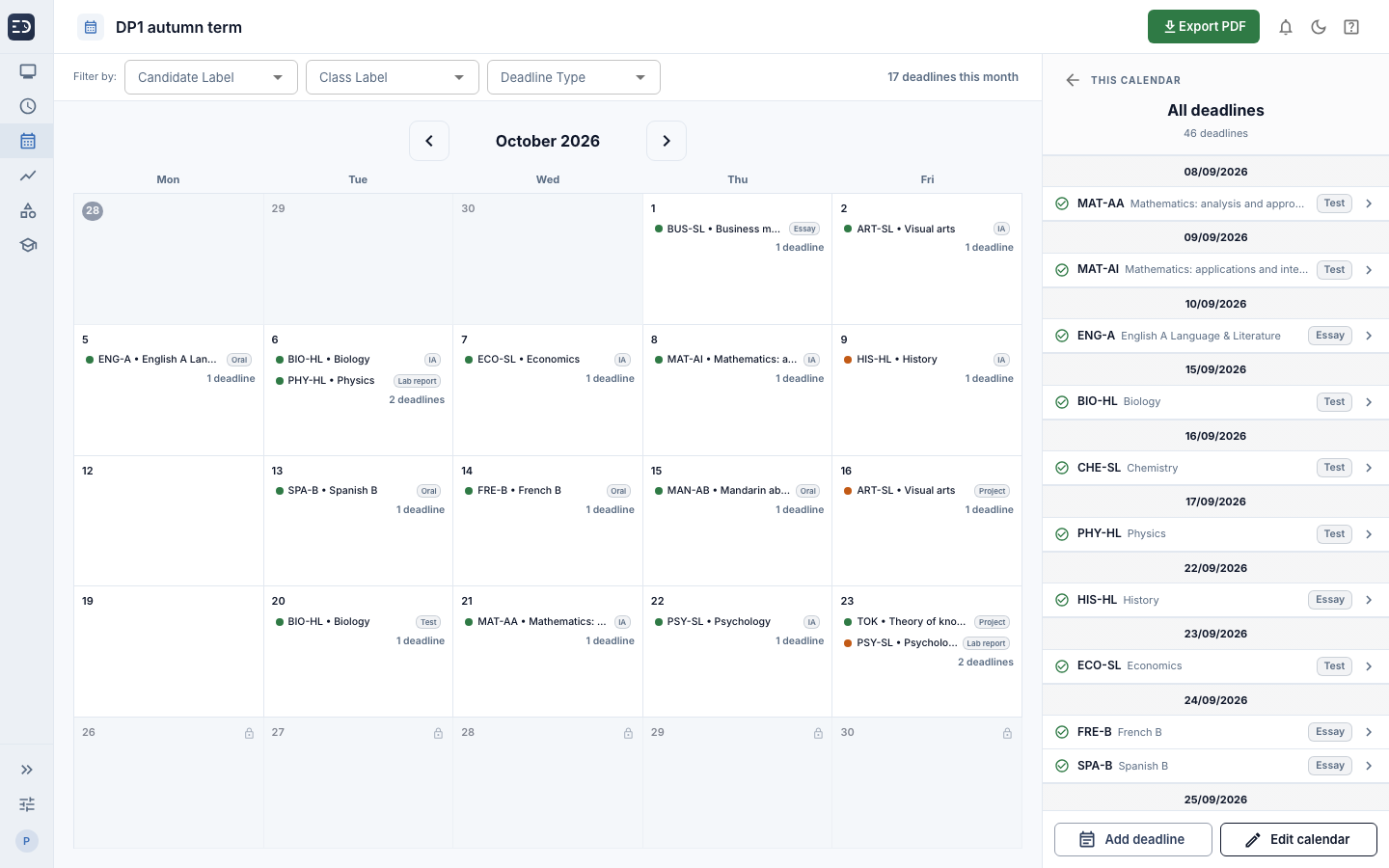
Every deadline in one place
One calendar for the staff who manage deadlines
All staff can contribute to the calendar, selecting their own subject deadlines, avoiding the need for shared spreadsheets.
Shared by the team
One assessment calendar shared by all staff.
Closed dates
Block dates or weeks when assessments should not be due.
Useful filters
Filter the calendar by class, student label or deadline type.
Calendar
Built around your timetable
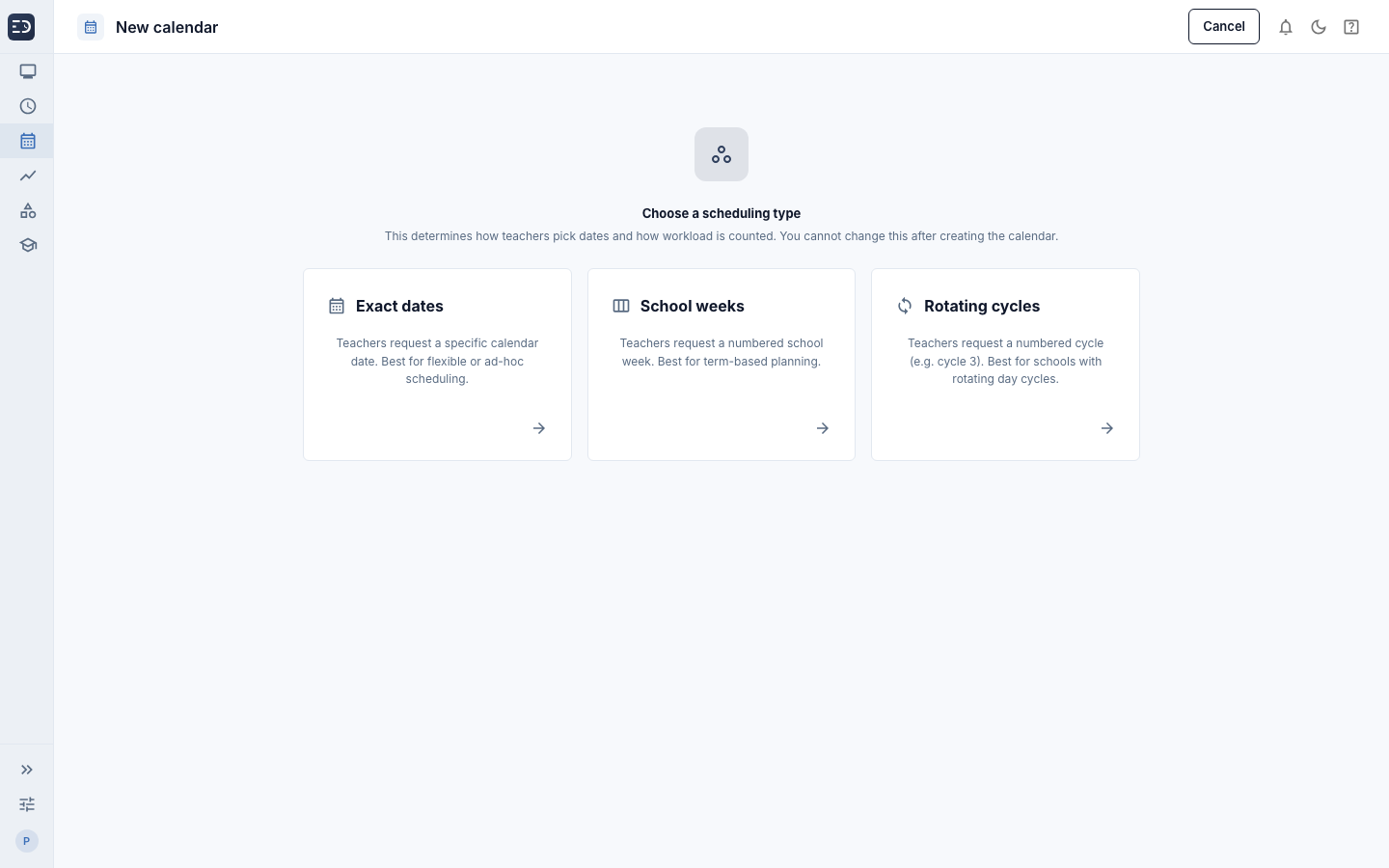
A calendar for every kind of schedule
Choose a format that suits your school calendar and timetable, with options for rotating cycles. Calendar is flexible and can be adapted to your needs.
Exact dates
Request a specific day. Limits apply per day and per week.
School weeks
Request a numbered week, with holiday weeks closed. Limits apply per week.
Rotating cycles
Request a numbered cycle of 7, 10 or 14 days, with or without dates. Limits apply per cycle.
Calendar types
See the pressure, not just the dates
See the impact before you approve
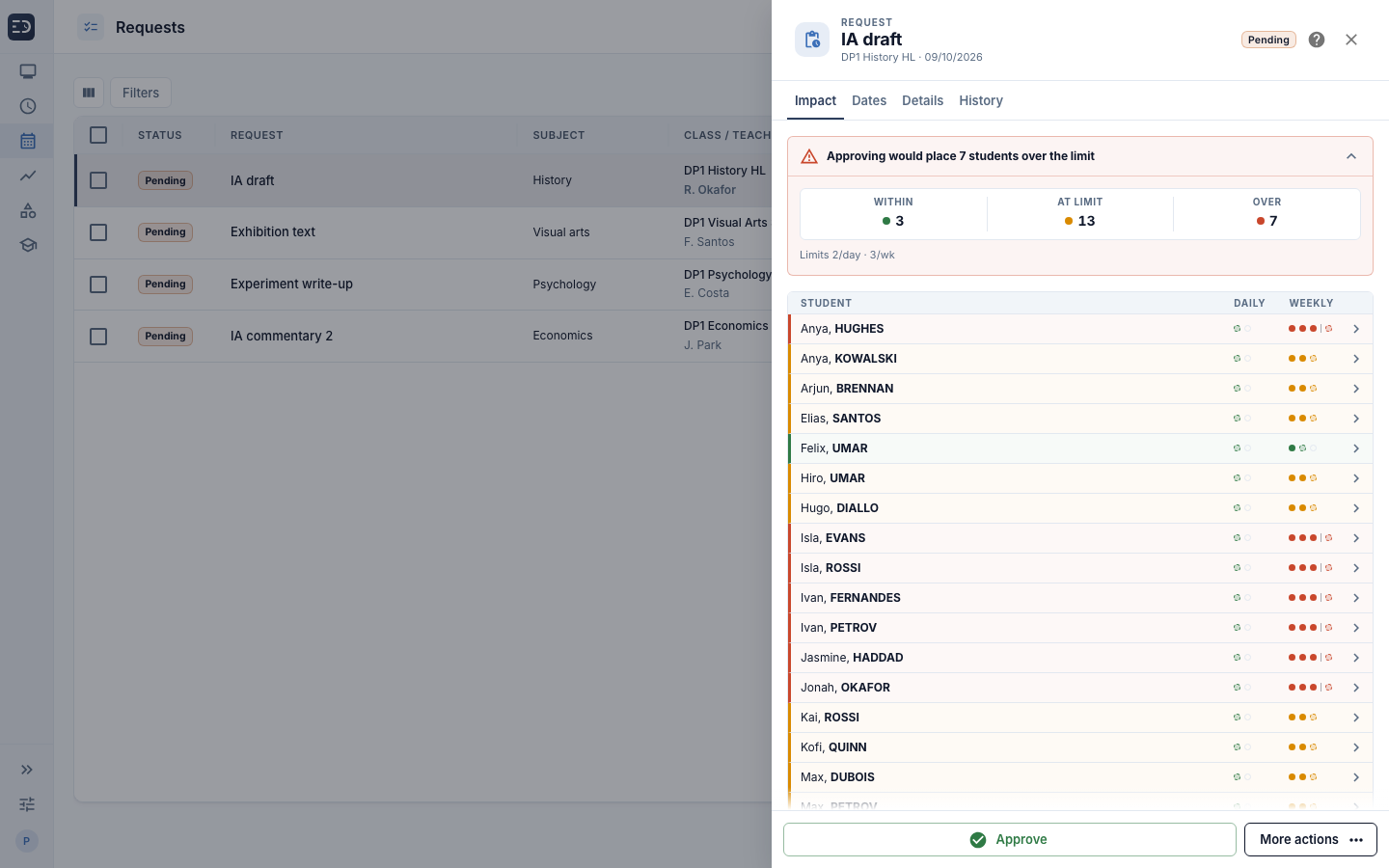
Set daily and weekly assessment limits for each cohort. When a teacher requests a deadline, Calendar checks the students affected and shows who would stay within the limit, reach it or go over it.
Set daily and weekly assessment limits for each cohort
See who is within, at or over the agreed limit before approving
The calendar coordinator has full control of every student's daily and weekly workload
Impact
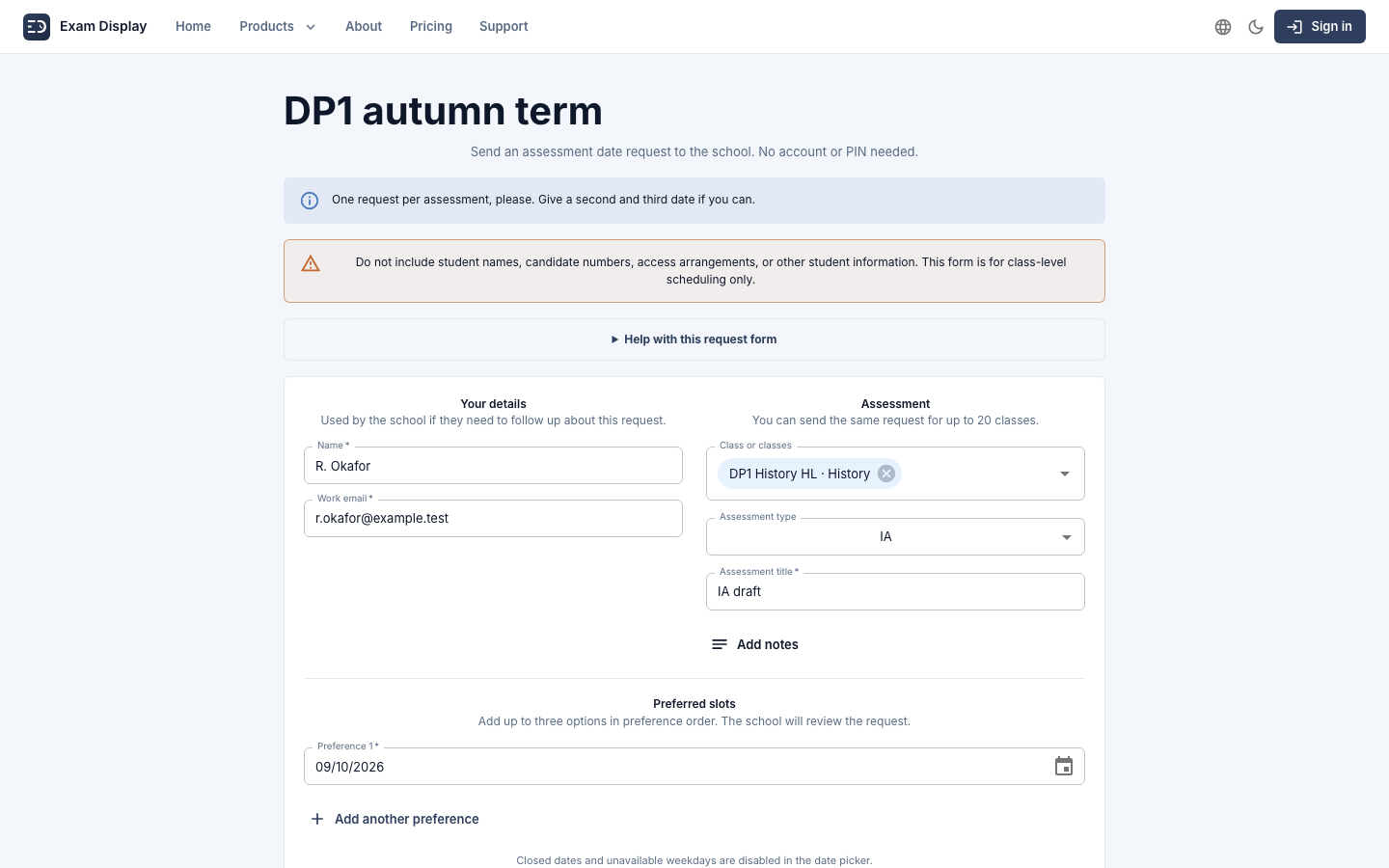
A workflow teachers actually use
0 new accounts for teachers
Teacher request form
Every calendar at a glance
Spot the pinch points before they arrive
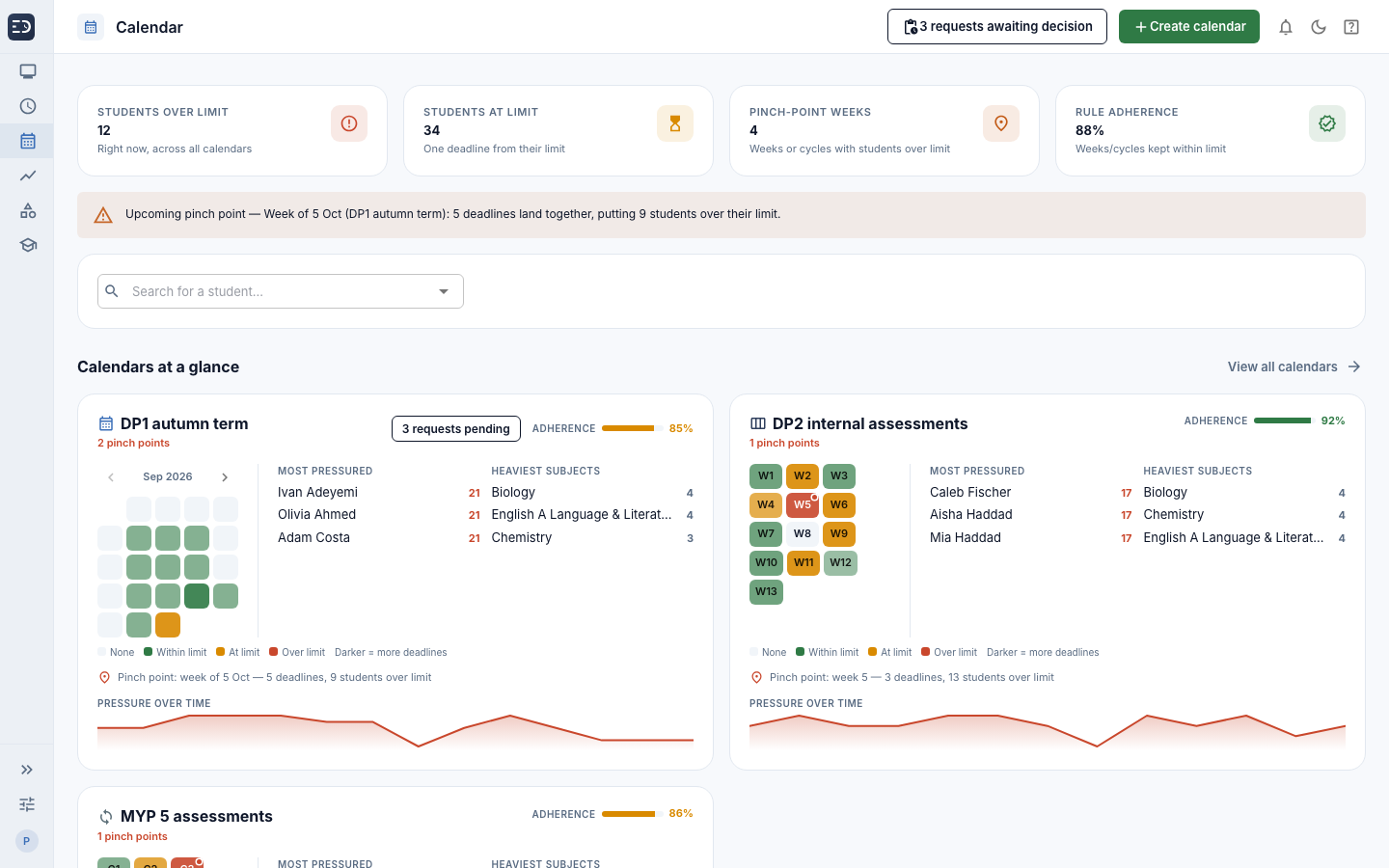
The dashboard reads every active calendar at once. It shows how many students are over or at their limit, warns you about the next week where deadlines pile up, and points you to the students and subjects under the most pressure.
A heatmap of each calendar, by day, week or cycle
Easily see the next pinch point, with the number of students it puts over their limit
Be forewarned about the most pressured students and the heaviest subjects
Search for any student to see their deadlines
Dashboard
Share it
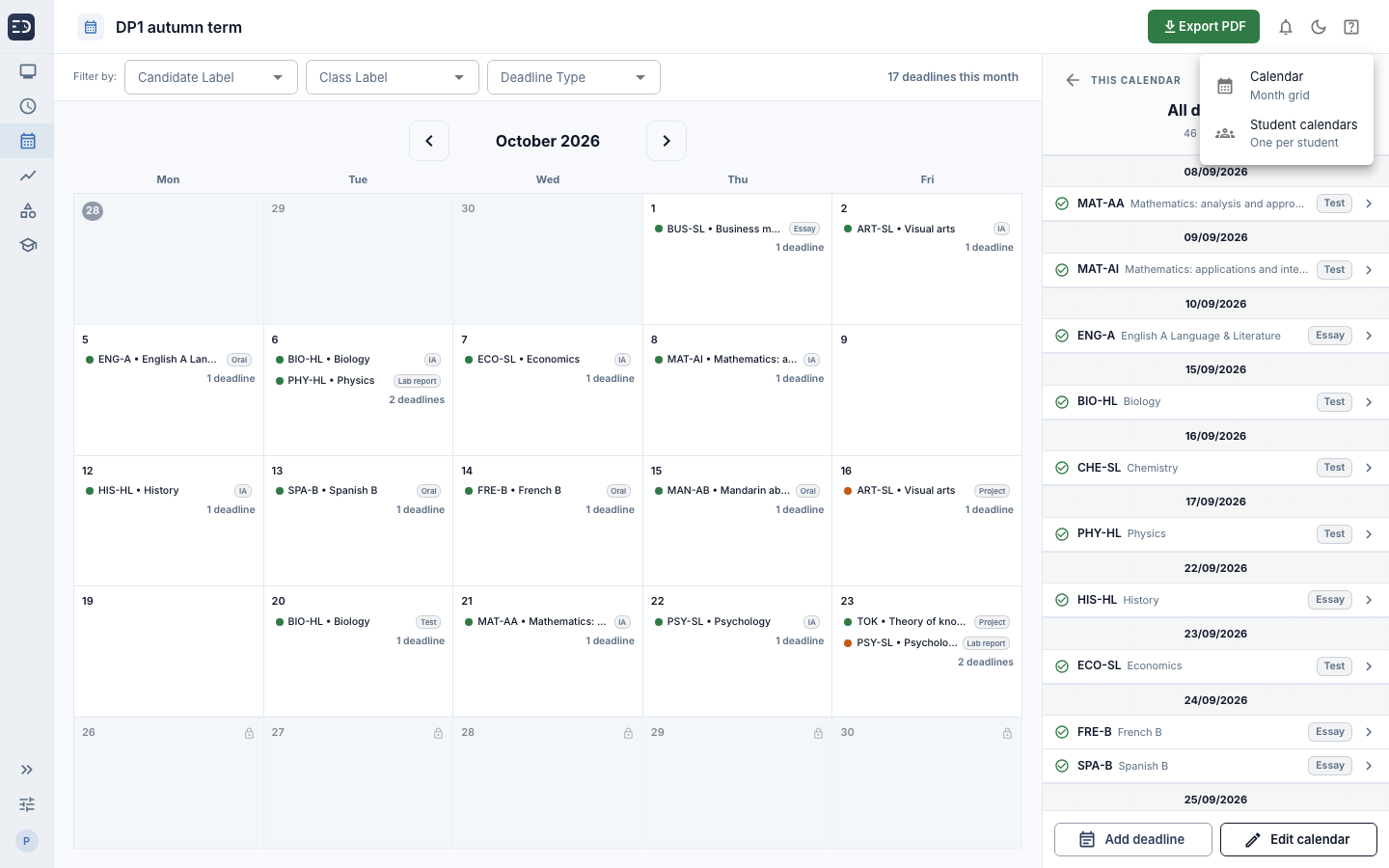
Export the calendar with a personalized version for every student
Print the full calendar for the staffroom and send each student their personal version.
Calendar PDF
A month grid, or grouped by week or cycle, to match the calendar type.
Student calendars
One calendar per student, showing only their own deadlines.
Teacher link
One shared link lets every teacher at your school request dates, with no account.
Export
How it works
From agreed limits to an approved calendar in three steps
- 1
Set the limits
Choose how much assessed work a cohort should have in a day or week.
- 2
Teachers request dates
Teachers choose their preferred dates using a shared link, with no account required.
- 3
Check and approve
See the impact on students, then approve the request or propose another date.
Request a trial of ExamDisplay
See whether your assessment calendar stays within the limits your school has agreed.
Legal